| Reference Number: AA-00520 Last Updated: 2021-12-22 14:34 |
Web page information saved by your Internet browser may become outdated or corrupted and need to be cleared for proper functioning of the Hawkes web platform.
Choose your Internet browser below for instructions on how to clear the cache and cookies:
2. Select the Chrome menu option in the top right corner of the window.
3. Select More Tools.
4. Select Clear Browsing Data.
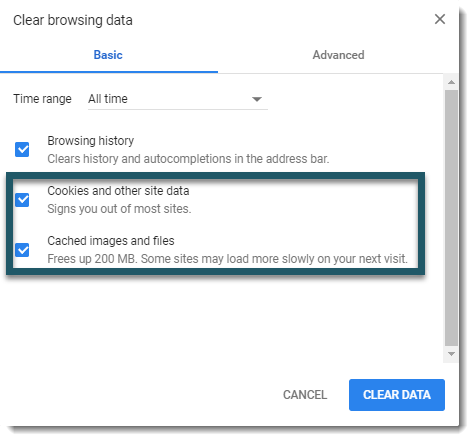
5. In the dialog box that appears, be sure to set the drop-down next to TIme range to "All time". Make sure the options for both Cookies and Cached images and files are checked.
NOTE: If you would like to keep your browsing history, you can uncheck "Browsing history".
6. Press the Clear Data button.
7. Restart Google Chrome by closing the window and reopening it.
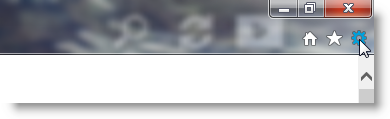
2. Select the gear symbol in the top right corner.
3. Select Internet options.
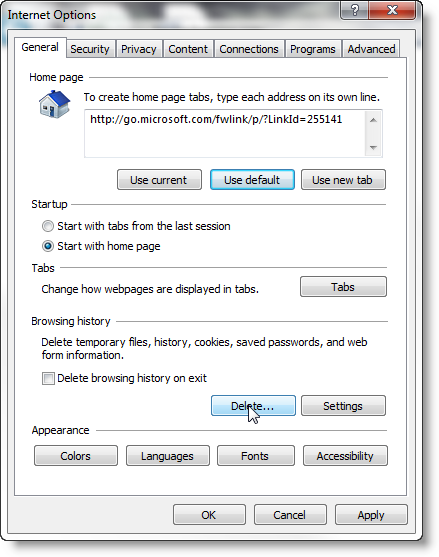
4. On the General tab, Press Delete... under "Browsing History".
NOTE: You will be prompted with a second dialog box asking which items you would like to delete. Uncheck "History" if you would like to keep your browsing history.
5. Restart Internet Explorer by closing the window and reopening it.
2. Select the Hub option in the top right corner.
3. Select the History option.
4. Select the link labeled Clear history.
5. Check the boxes for Cookies and Cached data and files.
6. Press the Clear button.
2. Select the Menu option in the top right corner of the window.
3. Select Options.
4. Select Privacy & Security on the left.
5. Under History, select the clear your recent history link.
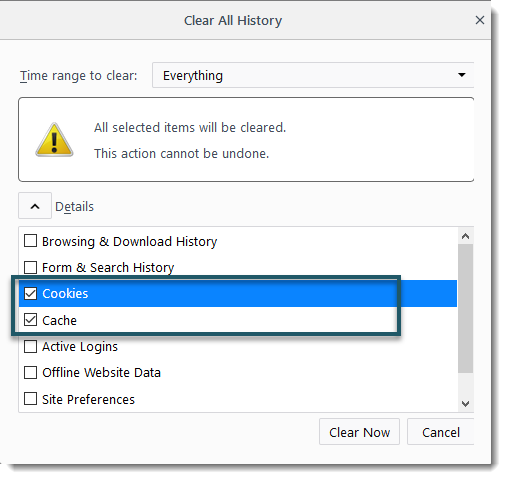
6. In the dialog box that appears, be sure to set the drop-down next to TIme range to clear: to "Everything". Make sure the options for both Cookies and Cache are checked.
NOTE: You may uncheck all other options if desired.
7. Press Clear Now.
8. Restart Firefox by closing the window and reopening it.
2. Select the Settings icon on your home screen on your iPad.
3. Select the Safari icon in the Settings menu.
4. Safari's settings will be displayed. Press Clear Cache or Clear History and Website Data.
You may receive a message asking you to confirm that you want to clear the cache/browsing data. Press Clear.
Safari version 8 or higher
-
Select Safari in the upper left hand side of your screen. In the menu that appears, select Preferences.
-
In the window that appears, select the Privacy tab. Press the Manage Website Data... or Details button.
-
In the window that appears, Search for "hawkeslearning" (without quotations).
-
Select the "hawkeslearning" entry(ies) (hold down the Command key while clicking to select multiple items). Press the Remove button.
-
Press Done when finished.
-
Restart Safari by closing the window and reopening it.
Safari version 5.1-7.9 (Older version)
-
Select the Safari menu at the top of your screen.
-
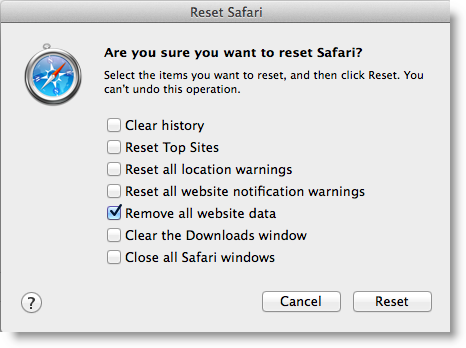
Select Reset Safari.
-
Select Remove all website data. (You can leave all other options unselected.)
-
Press Reset.
-
Restart Safari by closing the window and reopening it.