| Reference Number: AA-00790 Last Updated: 2023-12-26 13:49 |
GETTING STARTED
1. Log in to Blackboard. We recommend using Chrome or Firefox as your browser.
2. Select your course using Hawkes.
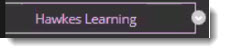
3. Select the Hawkes Learning tab from the navigation menu on the left, as shown below, to access your Hawkes account:
PURCHASE ACCESS AND MAKE YOUR ACCOUNT PERMANENT
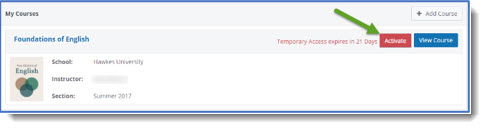
1. Click the Activate button.
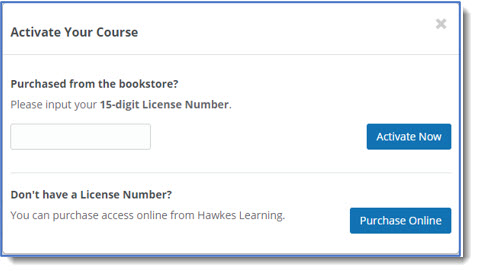
2. Using the pop-up window, complete one of the following steps:
- If you have purchased a License Number from your school bookstore, enter it and select Activate Now.
- If you need to purchase directly from Hawkes Learning, select Purchase Online.
NAVIGATE YOUR COURSE
Watch the Training Video, located under your name in the top right corner of your Hawkes Dashboard, to familiarize yourself with the courseware.
Use the Navigation Toolbar to access important resources such as your grades, eBooks, the notifications center, and messages.
Select an assignment from your Dashboard or click View Course and select one to begin working.
COMPLETE YOUR HOMEWORK
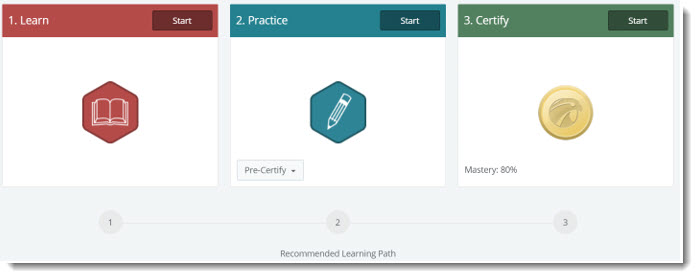
Each lesson involves three phases: Learn, Practice, and Certify. Use Learn and Practice to learn the concepts and work out practice problems with access to learning aids. When you feel confident in the material, move on to Certify to complete your homework and earn your grade. Note that you will need to reach the indicated mastery level for each lesson to receive credit.
ACCESS HAWKES DIRECTLY
(Only if unable to access Canvas or after the term has ended)
1. Clear your browser cache and cookies (directions found here).
2. Go to learn.hawkeslearning.com.
3. Select Forgot Password?
4. Enter your school email address and click Submit.
Follow the link in the email you receive to reset your password and log in to your Hawkes Learning student account.